| Introduction |
| Consent Form |
|
Questions for Potential Users |
| Program Instructions |
| Group Member Roles |
For this project we developed the program using a few different Java IDE's. Using IDE programs, we created "jframes" in Java Swing, and then combined the different Java frames and windows into one, by linking the frames and windows together. For most of the project we used Java Swing and used the IDE to create some of the interface, and we manually overrode and set the options to produce the desired results.
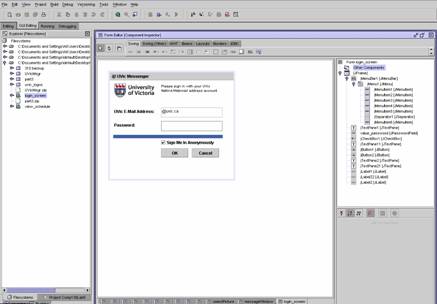
Development Screen
LOGIN SCREEN
For the login screen, we decided to go against the design layout which called for a drop-down menu for the users to login which remembers all previous login names, and instead with just a normal login box. This decision was made due to a concern of privacy issues. Since the goal of the program is to be used by UVic students, we believed that anyone using the program at UVic may not want the program to remember their UVic ID. With or design decision, it prevents someone from going to a computer that has UVic Messenger installed in a public place (like a UVic computer lab,) and obtaining a list of everyone who has accessed the program from that machine (also it would be a list of UVic e-mail address, i.e. spam.) Another thought was to protect the user's identity, if someone got a glimpse of someone typing in a password, and then opening UVic Messenger, they could just simply wait until the user is gone, and then open UVic messenger, to get the last persons login name. There is a feature though (mainly for home users) to have the program automatically remember the user name and password during each time. This feature though, would not unveil the user's password at anytime.

The "@uvic.ca" field has no drop down box
SCHEDULE SCREEN
On the "UVic View Schedule" screen it was designed to be simple yet advanced at the same time. The "view schedule" screen displays the user's class schedule (class and times) for the next few days, but also "hides" information about the "detailed class name" (class topic) and "class room location." This information can be easily accessed by just putting the cursor over the class on the class schedule, and a "text over" message will appear with the appropriate information. This way it hides some less important details from the user, yet still allows the user to easily view them, without much hassle.


LEFT: Normal View RIGHT: Details that appear when mouse is on the "SENG 310" field