Requirement 1:
Description:
The application should be lightweight and able to run effectively without using a great deal of resources.
Fit Criterion:
Users should be able to run the application effectively on any computer with at least 64 MB of RAM.
Solution: The application will avoid the use of large image files and other memory-intensive components to retain a basic, lightweight core.
Requirement 2:
Description: The system should store a list of the courses that the user is currently taking.
Fit Criterion: The system keeps track of the users’ current courses.
Prototype screenshot:
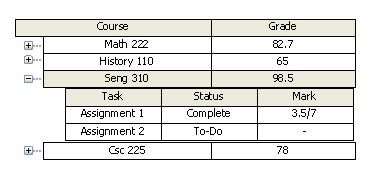
Prototype interface description and system process: The user’s list of courses will be maintained in a courses panel, displayed as an expandable tree to make it intuitively obvious.
The course grade and other critical information will also be viewable in this format.
Requirement 3:
Description: The user should be able to add and delete courses from the course list.
Fit Criterion: The user is able to modify the course list.
Prototype interface description and system process: A Course menu will be included between File and Help, and will contain the command to create and delete a course. When the “Add New Course” command is selected, an “Add New Course” wizard will appear, guiding the user through the process of creating a new course.
If no courses are selected in the Course Panel, the “Delete Course” command will be grayed and unusable.
If a course is selected in the Course Panel, the “Delete Course” command can be used to remove the course from the application. Upon using this command, the user will be prompted with a dialogue box, verifying that he/she does, indeed, want to remove the course permanently.
Requirement 4:
Description: The application should be able to maintain a list of user tasks (assignments/exams). Each task will be associated with one of the courses in the course list.
Fit Criterion: The application keeps a list of user tasks.
Prototype screenshot:
Prototype interface description and system process: The user tasks will be viewable in two locations:
Firstly, they will be contained in the Courses Panel as sublevels to the courses in the expandable tree.
Secondly, the outstanding tasks will be viewable in the To-Do-List Panel. This will appear as a large list of tasks with check boxes that can be marked when the task has been completed.
Requirement 5:
Description: The user should be able to add assignments/exams to the task list. Users will enter a number of attributes for each new task: task name, course, due date, and percentage weight.
Fit Criterion: The user can add tasks to the task list, along with all associated data.
Prototype
screenshots:
Method 1 Method 2
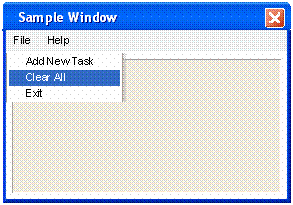
Prototype interface description and system process: New tasks can be added using one of two equivalent methods: the user can press the “Add Task” button or select the “Add New Task” command under the File menu. After executing either of these commands, the user will be guided through the task creation process by a wizard that prompts for the data elements such as task name, weight, and due date.
Requirement R6:
“To-do list”
Description: The application should be able to generate a “to-do list” for the user, outlining upcoming tasks for all courses.
Fit Criterion: Upon request, the application generates a to-do list for the user.
Data required: entered tasks with weighted marks and due dates
Prototype screenshot:
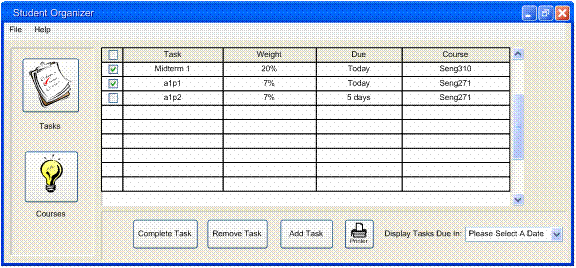
Prototype interface description and system process: The “to-do list” functionality is regenerated anytime a user adds or completes/deletes a task. It is accessible by clicking the “Tasks” button in the left pane. The “Task” column contains a prioritized list of tasks that should be organized first by due date, then those due on the same day should be prioritized in order of highest mark weight (i.e. – something worth 10% of your final grade should appear before something worth 5% that is due on the same day, but something worth 2% and is due the day before should appear before both these assignments). Each task should be preceded by a check box so that one or many tasks can be marked for completion or removed from the list. Each task line will contain the name of the task yet to be done, the class name, the mark weight of the assignment and the date due. The “Task complete” button removes any marked tasks from the list (they should remain in the course list, where they can later be assigned a grade). The “Remove task” button deletes marked tasks from the to-do list and from the course list (in case the task was added was a mistake or the task was cancelled, etc.). The “Add task” button should invoke the procedure for adding a new task to the list.
Requirement R7:
Entering a grade
Description: Upon completion of a given task, the user should be able to enter a grade for it in the task list.
Fit Criterion: The user is able to enter a grade for each task in the task list.
Data required: Task marked as completed in list (still appearing in course list) and mark
Prototype screenshot:
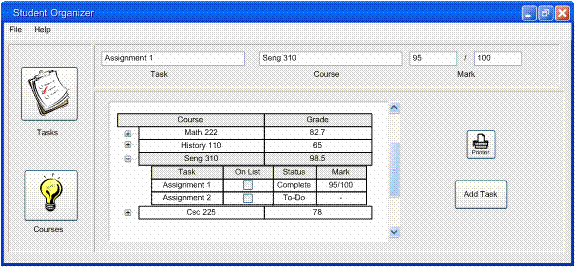
Prototype interface description and system process: The grade can be entered in two ways:
- The user can type the name of the class; the task name and the grade in the boxes along the top of the screen and hit enter. The program should then search for the task and if found update the task with the mark and recalculate that class’s running grade. If the task is not found, the user should be notified with a popup box that the task was not found. The boxes should be reset to blank after an update.
- The user can click on the course in the course list, expanding it to show the tasks associated with that class. Clicking on a task should fill its information into the boxes along the top of the screen, where the grade can be entered as in #1.
Interim grades for the class should be updated every time a mark is entered. This mark is visible next to the class name, and can be seen without expanding the task list for that class. The [-] sign next to a class will collapse the class task list and the [+] sign will expand the list.
Requirement R8: The
course list
Description: The application should be able to display the assignment/exam marks associated with a given course, along with the student’s current mark in that course.
Fit Criterion: The user is able to pick a course in the course list and view their task marks and current grade.
Data required: entered tasks with weighted marks and grades
Prototype screenshot:
Prototype interface description and system process: by clicking on the “Courses…” button, the user is immediately shown a view of all his courses and course grades. By clicking on the class, he can expand the class task list to see all the tasks associated with that class, including individual marks for each task completed. Completed tasks with no entered mark and incomplete tasks will have a null string in the task mark box, and will not contribute to the interim grade for the class. Whether the task is complete or not will be displayed in the status box. Clicking a [+] sign will expand the class task list and clicking on a [-] sign next to a class name will collapse the class task list.
Requirement R9: Grade
recalculating
Description: The application should recalculate the course mark each time a grade is entered by the user.
Fit Criterion: Whenever a user enters a mark into the system, the grade for the associated course is recalculated.
Data required: entered tasks with weighted marks and grades
Prototype screenshot:
Prototype interface description and system process: when a grade is entered, the mark associated with the task should be updated, and the interim grade for the class should be updated automatically. The interim grade will ignore all tasks that have not been completed and all tasks that have been completed but have not yet received a mark. The grade should be calculated using the mark entered and the weight of that assignment.
Requirement 10:
Description: The user should be able to print the to-do list.
Fit Criterion: The user has the ability to print off a copy of their to-do list, which they can carry with them.
Prototype Screenshot:
Prototype interface
description and system process:
A print button will be present when viewing the to-do list. It will appear below the list, near to the “Add New Task” button, and will have a standard-style printer icon. Clicking this button will pop up a “Printer Options” dialog, which will allow a user to select a printer, number of copies, etc. From there the user will be able to command the program to print.
Note that the actual form printed will be not be simply an image of the window itself, but a text form of the information presented in the to-do panel.
Requirement 11:
Description: The user has the ability to specify what time frame a to-do list covers (default is two weeks).
Fit Criterion: The user is able to choose the time frame a given to-do list covers.
Prototype Screenshot:
Specification:
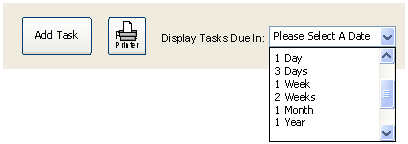
The user will be able to filter the to-do list by date. A drop-down menu with the following options will be located above the to-do list panel:
- 1 Day
- 3 Days
- 1 Week
- 2 Weeks
- 1 Month
- 1 Year
Depending on the selection, the tasks that fall into a date that is within the selected time frame will only appear. For instance, if you have “3 Days” selected, a task that is due next week will not appear. All dates are based on the “due date”, not the time of input or anything else, and the due date is compared to the current date to determine whether it will be shown or not.
Making a selection will have an immediate effect on the to-do list results, and that selection will remain until it is changed, even if the program restarts.
Requirement R12:
Multi-platform compliance
Description: The application should run on a variety of operating systems.
Fit Criterion: There are multiple versions of the application, so users will be able to utilize it regardless of their home operating system.
Solution: To avoid programming multiple versions, the application could easily be written in C# or Java, and require the operating system to have the appropriate runtime environment installed (the Java runtime environment, or JRE, is available at http://java.sun.com and is available for all operating systems. C# requires an implementation of the .Net framework. Windows can obtain this via the Windows Update feature, and *NIX and OSX operating systems can run .Net applications using Mono, an open-source .Net framework implementation, found at http://www.go-mono.com ). This is a much more cost-effective solution than programming several different versions of the program, adequate performance can be obtained through this multi-platform approach and the program only needs to be written once.
Requirement 13:
Description: The application’s interface should be simple and uncluttered, but still effective.
Fit Criterion: The interface should be simple, but should display all the elements required by the user. Inexperienced users should be comfortable with the interface.
Prototype Screenshot:
Specification:
There are several elements that the interface will use in order to try and remain simple, while still displaying as much information as possible.
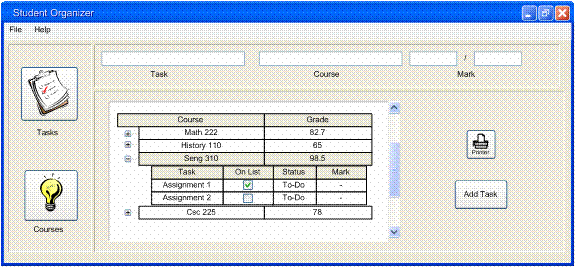
First of all there will be only two main panels:
- The to-do list
- The course list
The user will be able to switch between each panel by selecting its corresponding icon from the left side bar.
Pressing a button will switch the panel to the selected type, as well as depress the selected button. This will leave little doubt about which panel a user is currently viewing.
Between both panels, all of the information a user would want would be available. The to-do list will show all of the current tasks, as well as their details such as weight, course, due date etc.
The courses panel displays all of the current courses a user is taking. Using an expandable tree type of system, this panel will also show all of the completed and current tasks associated with a particular course.
Overall this requirement is difficult to determine when it is satisfied, as it relies on a person’s opinion of what is or is not cluttered. Overall the interface will use large iconic buttons, and textboxes for input by the user. It will display most things in a spreadsheet style of form in both panels. That sort of display should be easy for the user to understand, as what is being displayed is essentially a list anyway. It also shows all of the information in a fairly small amount of space.
Requirement 14:
Description: The user should be able to clear all courses from the course list and tasks from the task list.
Fit Criterion: A “purge” function will be included in the application.
Prototype Screenshot:
Specification:
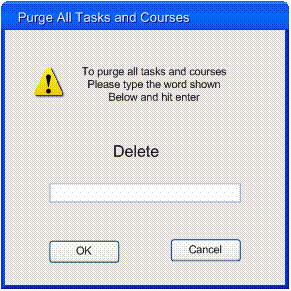
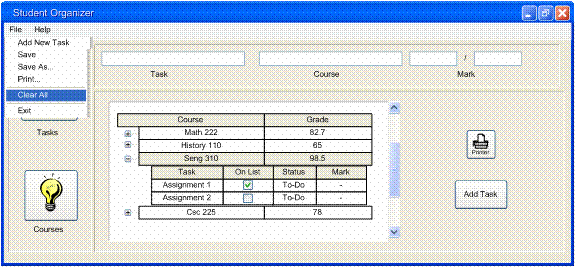
A “Clear All” function will be available to the user under the File menu found at the top of the window. If selected, the user will be prompted to make sure they want to use the purge function. The popup box requesting verification of the purge order should require the user to type “delete” in a text box to proceed with the purge, to be absolutely sure the user isn’t deleting everything by accident.
If they do, all of the tasks and courses currently stored and being used will be removed, and the user will be left with a blank organizer with which they can add new courses and tasks to.
Requirement 15:
Description: The application should be able to choose which courses from the course list are included in the to-do list.
Fit Criterion: The user is able to select which courses will be included when the to-do list is generated.
Prototype Screenshot:

Specification:
If a user creates a new task from the “Add New Task” function, that task is automatically added to the complete list of tasks in the courses panel. It is also automatically displayed on the to-do list.
A user can select a task from the courses panel and choose whether it is on the to-do list or not, regardless of that task’s status (complete or to-do.) Using a checkbox located in the corresponding row the user can enable/disable that task for being displayed on the to-do panel.
The user is not able to make these changes from the to-do panel since if they accidentally unchecked a task, they would have to change panels to re-check it anyway.